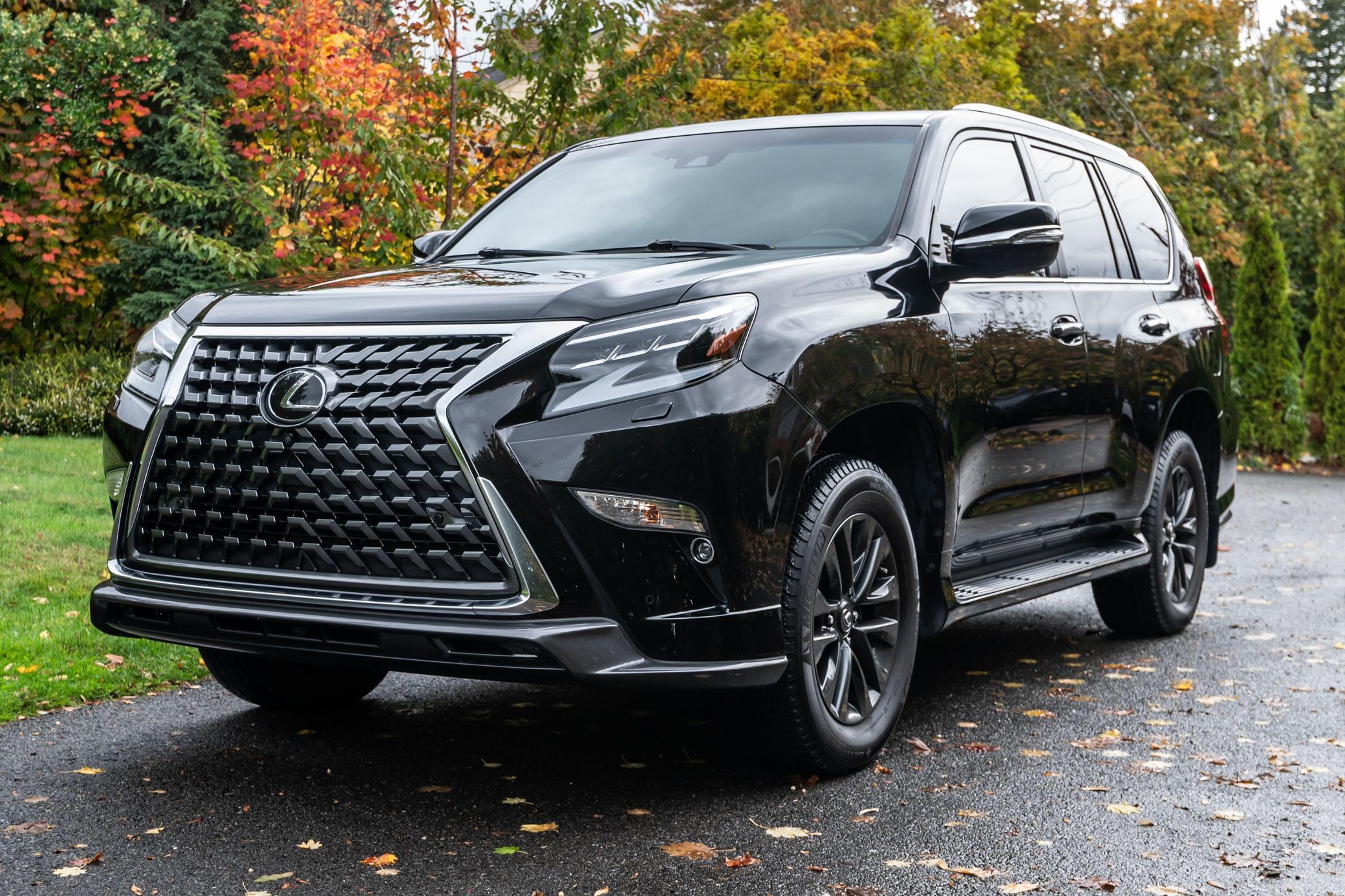
Find the location of the USB port. Take out the USB drive, provided that there are some songs stored in the USB drive. Insert it into the USB port to start using.

I often use a USB drive to listen to music while driving, and it's quite simple. First, prepare a USB drive and ensure it's formatted in FAT32 with MP3 or WMA song files stored inside. Avoid using excessively large-capacity drives (16GB or less is fine). Then, plug the USB drive into the car's USB port—some cars have multiple ports, so try the one on the side or the center console. Next, turn on the car stereo, locate the input source button, usually labeled 'USB' or 'AUX,' and press it to switch to USB mode. The stereo will automatically scan the files and start playing. If there's no response, check if the USB drive is properly inserted or restart the stereo. Common issues include unsupported file formats or a faulty USB drive—switching to a smaller drive usually solves the problem. Once set up, you’ll have your own playlist accompanying every drive, making the journey more enjoyable.

For those who frequently debug in-car devices, the key to playing music from a USB drive lies in the settings. The USB drive must be formatted in FAT32 and contain common music files like MP3, avoiding high-definition formats such as FLAC to prevent incompatibility. After inserting the USB drive into the vehicle's USB port, turn on the radio and look for the USB option in the mode selection to switch over. The system will automatically read and play the files. If you encounter lag, check if the USB drive is damaged or if the files are corrupted, and try reformatting it. Some car models require manual selection of the folder path, so it's recommended to place music files directly in the root directory. Having tested various car models, most modern vehicles support this feature, with compatibility issues usually stemming from differences in USB drive brands. Keep the USB drive clean and dry, and avoid overheating to prevent performance issues. Once set up successfully, music is readily available at the touch of a button during road trips, ensuring a smooth experience.

Simply put: Format the USB drive as FAT32 and store MP3 songs. Plug it into the car's USB port, turn on the radio, and press the USB mode button. It will automatically start playing songs; if not, manually select the playlist to check. A smaller USB drive (8-16GB) is better, and ensure the files aren't corrupted. That's it—now you can enjoy your music.

I've used the car radio to listen to music from a USB drive many times. Format the USB drive as FAT32, put MP3 files on it, plug it into the car's USB port, turn on the radio power, and then switch the input source to USB position—it usually recognizes and plays. If there's an issue, check if the USB drive has poor contact or if the file format is incorrect; try a different USB drive if necessary. Remember, updating the radio firmware can improve compatibility. Make sure to turn up the volume and you're good to go.

When working on a car audio system by yourself, playing music from a USB drive is both fun and practical. The USB drive must be formatted in FAT32, and MP3 songs are the most reliable. Simply plug it into the car's USB port. After turning on the radio, switch to USB input, and it will automatically scan and play the files. If you encounter recognition issues, check the USB drive's health or for dust in the port. Optimization tips include storing songs only in the root directory to avoid file corruption. I've tried various USB drive types and recommend Kingston for its strong stability. Once successful, you can customize playlists freely, making the driving atmosphere more enjoyable.