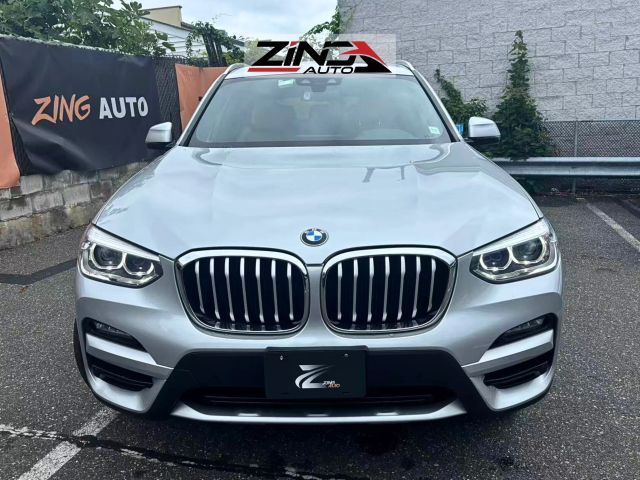
Download the vehicle interconnect APP. After installation, start the interconnect software on your and keep it running normally. Match and connect the phone to the car's Bluetooth, then enable the USB debugging function on your phone. Start the interconnect software on the car's system. Once the car system successfully synchronizes with the phone applications, the interconnect main page will be displayed. Use the phone mirroring function to achieve phone function mapping, enabling screen sharing. Additional information (BMW series include the following): As one of the three major German luxury brands, BMW not only holds a high market share and recognition in the domestic new car market but also boasts acceleration and high-speed performance that are among the best in the world automotive industry. The numeric series models include the 1 Series, 3 Series, 4 Series, 5 Series, 6 Series, and 7 Series. 1 Series: A compact car. 3 Series: A diverse success, a simple, sleek, and sporty premium sedan. 4 Series: Positioned between the 3 Series and 5 Series, offering a premium price. The new 4 Series' overall dynamic design will attract a younger consumer base and serve as a viable alternative to the high-end 6 Series Coupe. 5 Series: Personality, exemplar, dynamism—the BMW 5 Series: Wisdom forged through experience, the courage to challenge limits. 6 Series: The most elegant way is to embark on your journey in a BMW 6 Series. 7 Series: Offers stability and agility beyond other sedans.

I recently tried BMW's screen mirroring feature, which mainly relies on the in-car iDrive system and smartphone integration. After getting in the car, first power on the vehicle, then enable and Wi-Fi on your phone. On the central display, navigate to the 'Multimedia' menu and select 'Mobile Devices' or 'Connect New Device'—this will trigger an on-screen pairing code. Search for the corresponding BMW Bluetooth name on your phone and enter this code to complete pairing. Once connected, launch CarPlay (for iPhone) or Android Auto (for Android), and the car's screen will instantly mirror your phone's apps. During driving, navigation and music apps are most frequently used—far safer than looking down at your phone. Just remember to establish the connection before departure, as operating it while driving can be distracting. Note that older models may require USB cable connection, so check your specific model's instructions.

As a business professional who frequently uses the car for work, I'm accustomed to handling tasks via screen sharing. The core steps are threefold: After starting the vehicle, navigate to the central control menu and initiate new device pairing under the 'Phone/Devices' option; Search for 'BMW XXX' via your phone's and enter the 6-digit verification code displayed on the screen; Activate screen mirroring once connected. Connection stability is crucial—I recommend simultaneously enabling your phone's mobile hotspot for smoother data transfer. I often use it to display PPTs or meeting agendas, but remember to operate only when the vehicle is stationary. Phone battery consumption increases by about 20% compared to normal usage, so it's advisable to prepare a car charger for long trips. For emergency calls, the system automatically compresses video quality to prioritize call stability—a thoughtful design feature.

Last time my son taught me to use this function, he specifically emphasized taking it slow. First, start the car and wait for the central control screen to fully light up before proceeding. Find the settings menu with the little globe icon and tap the 'Connect Device' option. Take out your , turn on the Bluetooth switch in the settings, and let it automatically search for the device name starting with 'BMW'. The screen will display a numeric password; just enter it accurately on your phone. After successful pairing, remember to press the prompt key on your phone to agree to sharing. At this point, you'll see your phone's map appear on the car's large screen. It's best not to wear gloves during operation, as the touchscreen may not respond well. Additionally, my 5 Series requires a vehicle system update every six months; otherwise, the connection might suddenly drop, which can be quite troublesome.

On long trips, I value the screen-sharing navigation assistance feature the most. The connection process is simple: turn on your phone's immediately after starting the vehicle—no need to wait for the infotainment system to fully load. Just press the voice button on the steering wheel and say 'Connect mobile device,' and the system will automatically enter the pairing interface. After entering the pairing code, here's the crucial part—you must manually enable the screen-sharing permission in the 'Developer options' on your phone (for Apple, it's in CarPlay settings; for Android, you need to check USB debugging). While driving, it's safer to set your route in advance and use voice commands to switch programs. In practice, Android Auto offers better compatibility, especially when using Baidu Maps. However, note that prolonged use can cause significant phone overheating, so it's best to disconnect and take a break after two hours.

Having played around with three different models of , I found that the key to screen sharing lies in signal compatibility. The wireless connection is quick on the new 7 Series, but for the older 3 Series, it's recommended to use a Type-C cable for more stable performance. After starting the vehicle, first turn on your phone's hotspot, then go to the 'Device Manager' in the iDrive menu to add a new device. When pairing, remember to temporarily turn off other Bluetooth devices on your phone to avoid signal interference. Android users should pay special attention: first search for 'Screen Casting' in the phone settings and enable permissions, otherwise the car's system won't recognize it. During testing, Huawei phones showed the best compatibility, while Xiaomi phones occasionally experienced crashes. A delay of about 0.5 seconds in the display is normal during use. Also, those who have modified their car's infotainment system should be cautious not to flash third-party firmware, as it may cause original functions to fail.