Browse

Log in / Register
 Share
Share
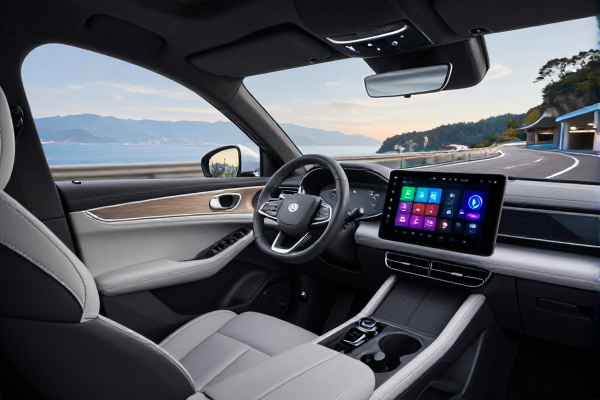
Most drivers use Android Auto to mirror apps and navigate, but few tap into its deep personalization potential. The platform, designed to make your car smarter, is packed with customization options that go far beyond basic app access. From changing its visual interface to automating complex routines, you can tailor every drive to your preferences. These adjustments are simple, often buried in just a few menus, and can dramatically improve your in-car experience. This guide explores seven essential tweaks—including some advanced settings—that will help you master Android Auto. [Updated: May 25, 2024]
1. Declutter Your App Launcher for Instant Access Scrolling through rarely used apps on your car's display is distracting. Android Auto allows you to curate which apps appear on its launcher and even set their order. Navigate to your phone's Settings, search for 'Android Auto,' and select 'Customize Launcher.' Here, you can deselect apps you never use while driving and prioritize your favorites. For the ultimate streamlined experience, arrange them in a custom order instead of the default alphabetical list, ensuring your most-used navigation or music app is always front and center.
2. Lock Your Preferred Visual Mode: Day or Night The automatic day/night switching, based on headlights or time of day, doesn't suit everyone. If you have a strong preference—like always using dark mode to reduce glare—you can set it permanently. Within the Android Auto settings on your phone, find the 'Day/Night' mode option. You can choose 'Night' or 'Day' to force a constant theme, or select 'Phone controlled' to have it sync with your device's system-wide setting. This small change adds consistency and can be easier on your eyes during long drives.
3. Automate Your Commute with Smart Routines and Shortcuts Perhaps the most powerful feature is the ability to create custom routines and shortcuts. As highlighted by tech experts, you can set up automated actions triggered by a single tap or voice command. For example, create a "Headed Home" shortcut that texts your family your ETA, adjusts your home thermostat, and starts playing a specific podcast. These automations leverage Google Assistant and compatible smart home devices, transforming your car into a command center for both your journey and your home.
4. Take Command of Your Message Notifications Android Auto offers granular control over messaging alerts, crucial for minimizing distraction. Beyond simple on/off toggles, you can manage notifications for group chats, choose whether to show a message preview, control alert chimes, and decide if Google's Gemini AI can access or summarize your texts. These settings, found under 'Notifications' in the Android Auto app, ensure you stay connected safely, receiving only the alerts you deem important while filtering out the noise.
5. Reposition On-Screen Media Controls The default layout places media playback controls on the driver's side. However, if a passenger often manages music or you find the placement awkward, you can switch it. Dive into the 'Advanced' settings within the Android Auto app on your phone. Look for the option to shift the media controls closer to the passenger side or prioritize navigation on the main screen. This ergonomic tweak can make the interface more intuitive depending on your car's setup and personal habits.
6. Personalize Your Display with Your Phone's Wallpaper Break away from the standard geometric background by syncing your phone's wallpaper to your car's display. This setting, typically located under 'Display' in Android Auto settings, instantly applies your chosen static wallpaper as the backdrop for the app grid. While live wallpapers aren't supported, this feature creates a seamless visual link between your devices, making the in-car experience feel like a true extension of your personal phone.
7. Eliminate Audio Chaos on Startup A common frustration is Android Auto resuming audio playback—like a podcast or music—automatically when you start your car. To prevent unwanted sounds, you can disable the "Start music automatically" setting. Conversely, if you always want your audio to resume, ensure this setting is on. This simple switch gives you full control over your car's acoustic environment from the moment you turn the key, avoiding surprises for you or your passengers.
Exclusive Insight: The Evolving Role of Built-in Vehicle Systems A notable trend is the increasing sophistication of native, built-in infotainment systems from automakers, which now often rival or exceed Android Auto and Apple CarPlay in integration. However, the unique advantage of Android Auto remains its deep, customizable link to your personal Android ecosystem—your apps, contacts, and preferences. Industry analysts suggest the future lies in a hybrid model, where projection systems like Android Auto work in tandem with native vehicle software to offer even more personalized and context-aware features, making these customization skills more valuable than ever.