Browse

Log in / Register
 Share


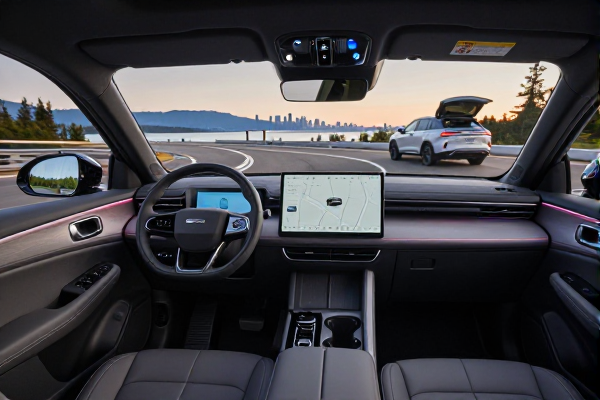
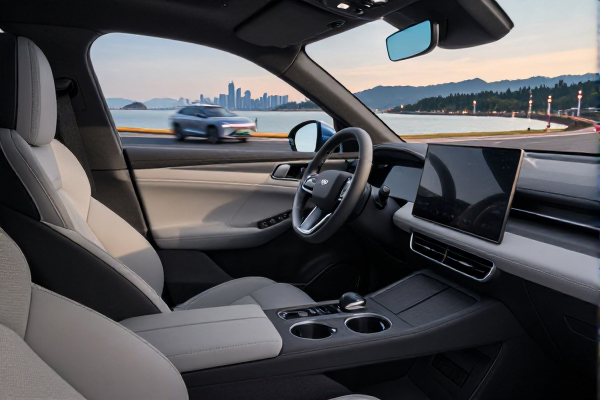
As of March 19, 2026, Google Maps users can finally change their vehicle icon directly from the Android Auto dashboard display. You no longer need to pick up your phone, unlock it, and dig through app settings just to swap that blue arrow for a red sports car or a green pickup truck.
The tweak rolls out with Android Auto version 17.8.163744 and Google Maps 26.38.0. Android Authority first spotted the change, and it builds on a longer rollout: vehicle icons were customizable in the Google Maps mobile app starting in February 2025, but Android Auto support only arrived around May 2026. The new update closes that gap by letting drivers make the same visual change from the car’s built-in screen.
The feature itself is simple. Open Google Maps through Android Auto, tap the gear icon in the maps view, select Driving Avatar, then pick a vehicle style and a color. The options include a sedan, truck, SUV, sports car, small EV, a set of legacy icons, and the familiar blue arrow. It is a purely cosmetic change, so it will not affect routing, traffic data, or ETA calculations.
At first glance, changing a car icon seems like a novelty. But the move is meaningful for a practical reason: it reduces the need to touch your phone while driving. Distracted driving remains a serious safety issue, and any settings change that can be handled through a larger, easier-to-use dashboard interface is a small win.
There is also a personalization angle. People who drive for rideshare services, delivery, or work vehicles may want the map marker to feel more like the actual car they are driving. Being able to set a truck icon when you are in a truck, or an EV icon when you are in an EV, adds a bit of clarity to the map display. It also makes the navigation screen feel less generic.
The customization follows the same logic as selecting a vehicle profile in other driving apps. It is not a functional setting, but it changes how the driver interacts with the map. Seeing a subtle difference on the screen can help you recognize your position faster, especially in dense city traffic or on multilane highways.
You have two ways to update the icon. The easiest route, if your car supports Android Auto, is to do everything from the dashboard:
If you prefer to manage the avatar on your phone, open the Google Maps app, go to Settings, then tap Your Vehicles, and select Driving Avatar. From there you can make the same selections. Any changes sync to your Android Auto display the next time you connect.
Google currently offers a handful of choices inside the Driving Avatar menu:
Each vehicle type can be paired with several preset colors, though Google does not yet support custom hex codes or user-uploaded images. The selection is narrow, but it covers the most common vehicle categories for everyday drivers.
A few points are worth repeating. The Driving Avatar is visual flair. It does not change how Google Maps measures traffic, how it chooses routes, or how Android Auto arranges notifications. In other words, the update is not meant to improve navigation performance. It is meant to improve the experience and make the maps view feel less monotonous.
That said, the feature may be a sign of where Google is heading. Vehicle-specific views are becoming more common in navigation apps, and it would not be surprising to see deeper EV integration, such as battery-aware routing or charging stop suggestions, appear in the same settings menu later.
Since you are already in the settings menu, you may want to check a few more important options. Offline maps are still one of the most useful features for anyone who drives through areas with weak cellular service. Download a map of your region, your regular commute route, or a destination city so navigation continues to work even when data drops out.
You can also enable trip progress sharing. This sends your live location and ETA to selected contacts, which can be helpful if you are picking someone up or driving a long distance at night. The option is available through the Google Maps app, and it does not require Android Auto to function.
Media playback controls are another convenient addition. By enabling them inside Google Maps, you can keep music and podcast controls visible in the same interface as your turn-by-turn directions. This makes it easier to manage audio without switching between apps while the car is moving.
Finally, check whether your Maps route preferences are set correctly. Google Maps can tailor route suggestions based on your vehicle type, driving style, and avoidance preferences. This kind of customization is especially useful in Android Auto because the system will show more relevant route options without requiring you to adjust anything during the drive.
The Driving Avatar update is not a major functional milestone. The list of icons is short, and the feature remains entirely cosmetic. But it is a sign that Google is listening to users who want a more customized dashboard. More importantly, the fact that it can now be changed from the Android Auto screen means you can skip the phone entirely. It takes only a few taps on the car’s display, no pickup required, no need to pull over, and no need to fumble with a handheld device while driving.
If you already have the latest Android Auto and Google Maps versions, you can try the new icon options right now. If the menu does not appear, check for app updates first, then look in Google Maps settings under Your Vehicles. Once the update is installed, the driving avatar becomes another small way to make navigation feel a little more personal.